How to Make an AI Music Video with Suno and Higgsfield
You can make an AI music video with a song and a clear photo. The useful part is knowing what to generate, what to keep together in the edit, and how to judge the export.
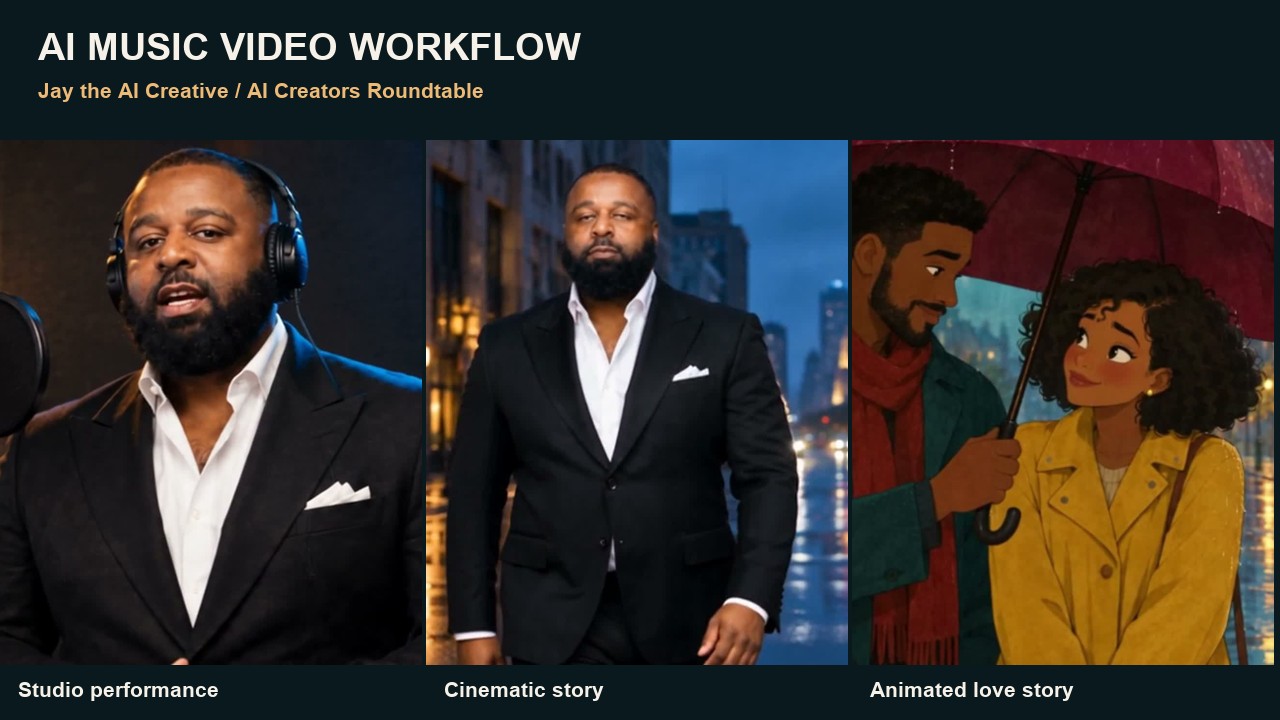
I tested three approaches: a studio rap promo, a cinematic story with the same character in different locations, and a short animated love story. This guide takes you through the inputs, prompts, edit, and quality checks. It also includes the mistake that made the lips start before the words.
The tools handle production work. You still choose the song, direct the scenes, and decide what is good enough to publish.
Presentation disclosure: the companion tutorial is presented by my digital avatar, Jay the AI Creative, using HeyGen Avatar III and my selected voice. Its job is to help creators and solo business owners use AI to buy back time and increase productivity. I direct the work; the avatar presentation is AI generated. The demo visuals are generated, and the animated couple is fictional.
Download the printable walkthrough.
The three examples
These are three separate examples with different recordings. You can reuse the workflow with your own song.
| Example | What we made | How the audio works |
|---|---|---|
| Set the Frame | A roughly 45-second studio rap promo using my suit character | The corrected edit keeps each generated clip's embedded audio paired with its picture |
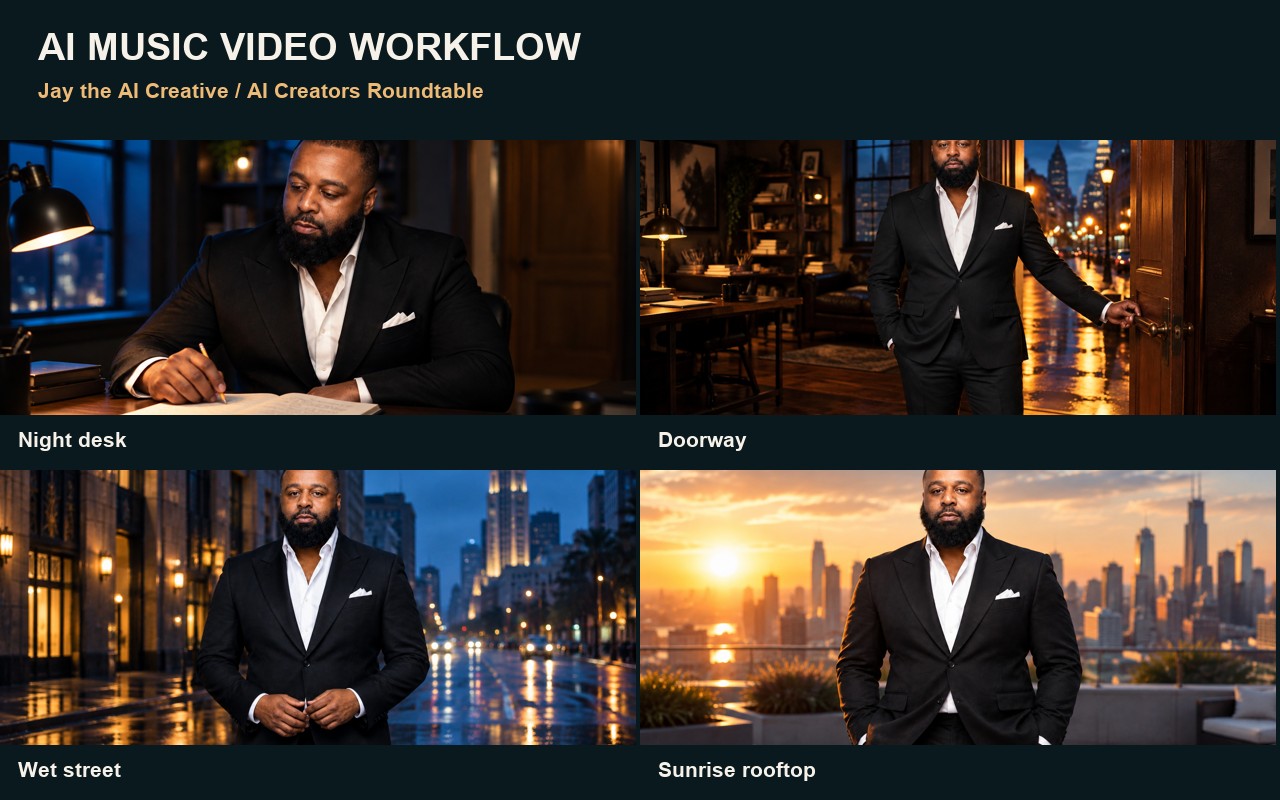
| From the Spark | A full 48.4-second cinematic video: desk, doorway, street, rooftop | The original song plays continuously under silent story scenes |
| Still Here | A 25-second animated love story across three stages of a couple's life | An original ElevenLabs piano score plays under the scenes |
Watch the corrected studio promo. Watch the full cinematic demo. Watch Still Here.
What you need before you start
- A song you can use, with the downloaded audio and lyrics saved locally.
- A clear photo of yourself, or a character image you have permission to use.
- Suno if you need to create the song, and Higgsfield for the visuals.
- An editor that lets you trim clips and keep their sound and picture together.
- A folder for prompts, references, source clips, final exports, and review notes.
Start with a small test. A short song and one reference will teach you more than a long shot list you have not tested.
Choose the format first
For an artist promo, try a performance to camera. For a brand film or artist visualizer, let a character move through a story while the song plays. For an anniversary or sentimental film, a short illustrated story can work with an instrumental score.
The choice affects the whole edit. A performance needs mouth timing. A narrative needs continuity and a song that stays intact.
Step 1: Create a short song in Suno
Write the lyrics separately from the style prompt. Our studio test used hook → verse → hook, with fully rapped vocals and a short arrangement.
In Suno's creation screen, use the advanced/custom lyrics controls available in your account. Put the lyrics in the lyrics field and the sound description in the styles field. Interface labels and models change, so use the controls currently shown to you.
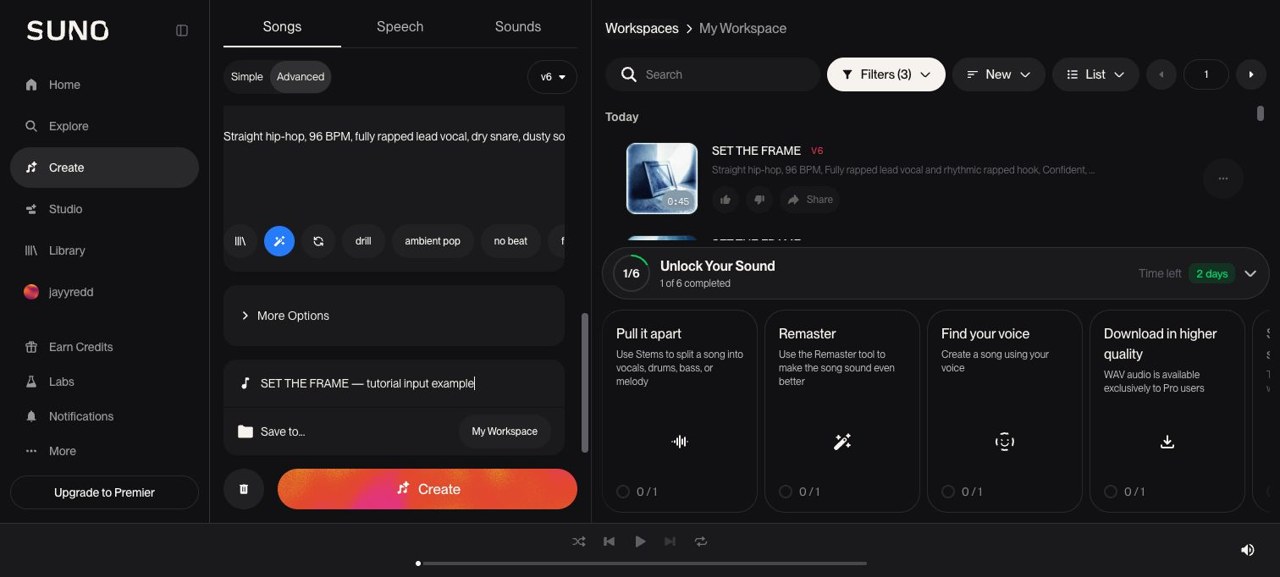
This screenshot is a prepared input example captured for the tutorial. It is not a screenshot of the original submission.
Copyable style prompt
Straight hip-hop, 96 BPM. Fully rapped lead vocal and rhythmic rapped hook.
Confident, conversational delivery with sharp diction and a relaxed pocket.
Hard kick, dry cracking snare, deep bass, dusty chopped soul textures,
sparse piano stabs, subtle vinyl grit. Space for the bars, restrained ad-libs.
Clean lyrics. Short track: four-bar hook, eight-bar verse, four-bar hook.
Vocals enter on the first beat. End with a hard drum stop.
Generate a few candidates and listen for three things: words you can understand, a hook you remember, and an ending that feels finished. Choose the actual recording before planning the shots. A prompt asking for 45 seconds does not guarantee that exact runtime.
Save the audio, lyrics, prompt, selected version, and duration together. Our selected Set the Frame audio decoded to 44.88 seconds. From the Spark decoded to 48.4 seconds. Those measured lengths drove the edits.
For monetized work, check your specific song's license under the current rules. Suno's help center says a later subscription does not grant retroactive commercial rights by default, while its newer downloads FAQ describes updated rights tied to paid downloads. Confirm the license attached to your track rather than assuming every song in your library has the same rights. See Suno's retroactive-rights explanation, its downloads and terms update, and current terms.
Step 2: Build a character reference you can judge
Use a photo with visible features and clean lighting. I selected the black suit portrait and reused that identity for the booth and cinematic locations.
Generate a still for each location before asking for animation. Describe what stays the same first, then describe the setting and framing.
Booth still prompt
Preserve the reference person's facial features, skin tone, hair, beard,
and build. Keep the black suit, open white shirt, and white pocket square.
Place him in a recording booth wearing studio headphones.
Warm amber practical light, blue rim light, realistic cinematic photography.
Medium framing. Put the microphone off to one side so his mouth remains
visible. Natural hands. One person. No text, logos, or watermarks.
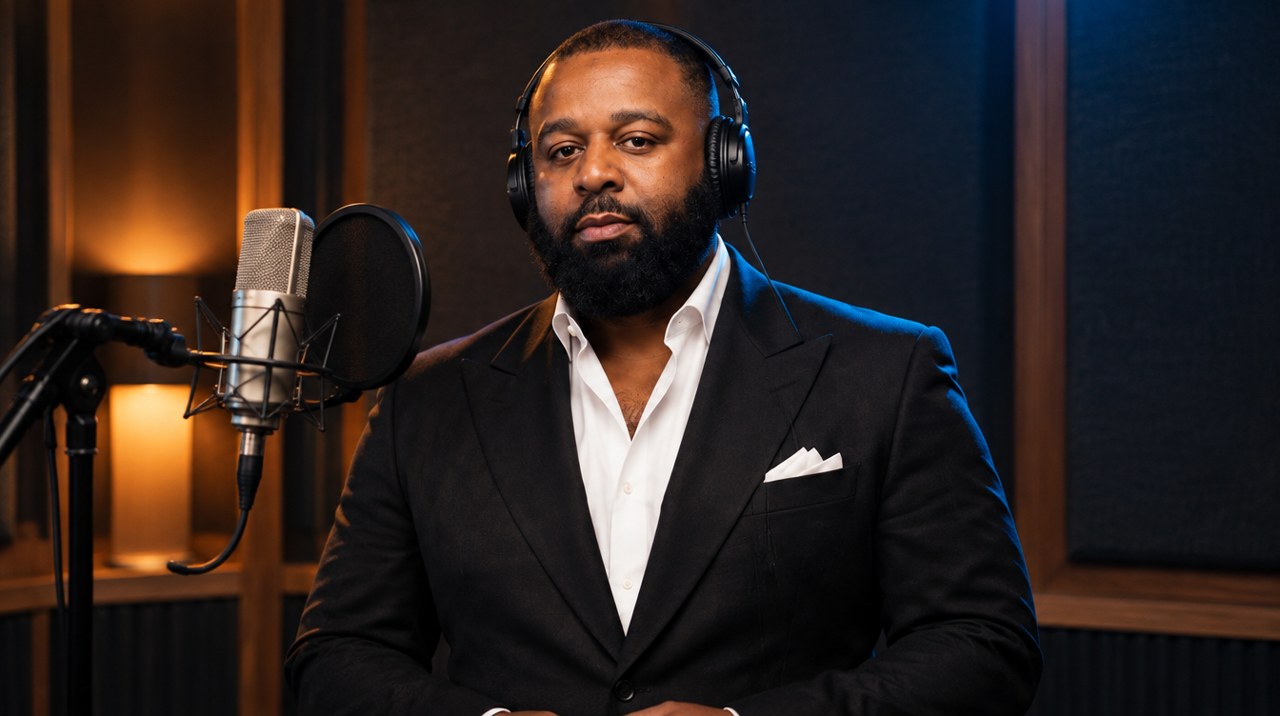
Check identity, clothes, hands, and framing. If the still looks wrong, fix it now. Animation will carry those problems into more frames.
Step 3A: Make a studio performance in Higgsfield
- Open Higgsfield's video generation screen.
- Select a model and mode that accept your reference image and audio. Our final performance clips used Seedance 2.5 with image and audio references.
- Upload the approved booth still and the matching audio excerpt. In a connected assistant workflow, ask it to upload those files and use the returned media references.
- Set the duration within the model's supported limits. Read the current credit estimate before submitting.
- Request restrained movement and a clear face, then generate one short test.
- Check the preview before generating the remaining sections.
Higgsfield's Seedance help page explains its current model controls. The official media-input reference documents model-specific reference support. Check the chosen model; this workflow does not mean every model accepts the same inputs.
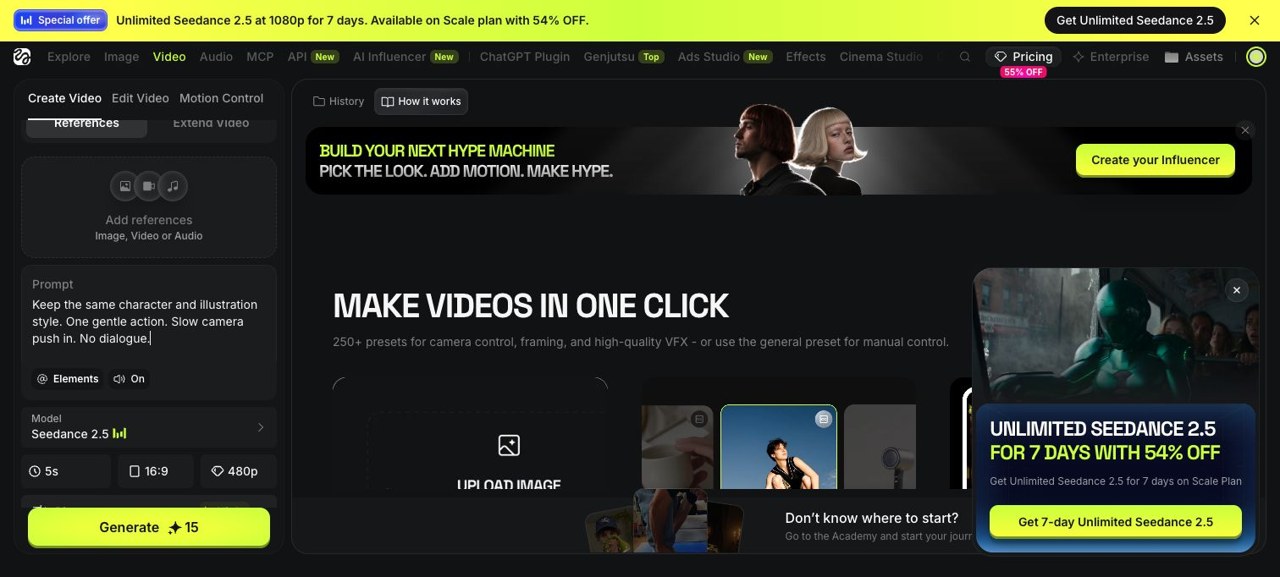
This screen capture shows the controls. The generations in this test were submitted through the connected Higgsfield tools.
Performance direction
Use the same man and booth from the reference. Perform the supplied rap
audio with clear facial visibility and restrained natural head movement.
Keep the suit, headphones, lighting, and camera framing consistent.
Keep the microphone away from the mouth. No scene changes or extra people.
We divided the song at 0, 15, and 30 seconds, then gave each generation its matching excerpt. The final section ends with the song at 44.88 seconds. Preserve exact boundaries when trimming and reassembling; do not guess them from the lyrics.
We requested 480p and enlarged locally to 1080p. The lower resolution did not reduce the quoted cost in our test. Treat that as a recorded result from this account and model, not a pricing rule.
The lip-sync mistake and correction
The Higgsfield previews looked better synchronized than the first local export. In that first edit, we advanced the picture by 40, 50, and 125 milliseconds and replaced the generated soundtracks with the original MP3. The user noticed mouths leading the words.
The corrected export removed those advances, kept each preview's embedded sound paired with its picture, and preserved the native 24 fps. Measured comparisons found no added export drift after the correction.
That correction also has a tradeoff: the embedded generated audio differs from the original Suno mix. If keeping the original master is essential, test and align the performance against that exact master before producing a long video. Our corrected promo demonstrates preserved preview timing; it does not certify perfect mouth shapes for every word.
Step 3B: Create a cinematic story over the original song
For From the Spark, the character does not sing or rap. He moves through four locations while the original song stays continuous.
| Scene | Timeline | Direction |
|---|---|---|
| Night desk | 0–12 seconds | Write, then put down the pencil |
| Doorway | 12–24 seconds | Walk through the doorway |
| Wet street | 24–36 seconds | Walk through the city; use a tighter crop at 30 seconds |
| Sunrise rooftop | 36–48.4 seconds | Look toward the sunrise |
Use the same identity reference for every still. Then describe one clear action for each animation. Put the complete song on the edit timeline and trim the scenes around it.
Reusable scene prompt
Preserve the same character, face, beard, build, and black suit.
Animate the approved location still as one continuous cinematic shot.
Action: [one specific action].
Camera: [one restrained movement or a locked shot].
Keep the character recognizable and centrally framed.
No speech, no singing, no lip-sync performance, no extra people.
This format is useful when the mood and story matter more than performing every lyric. It also avoids replacing the original song to match a generated mouth.
Step 3C: Make a short animated love story
Still Here follows a fictional Black couple through a rainy first meeting, a quiet kitchen, and growing old together. A burgundy umbrella connects the scenes.
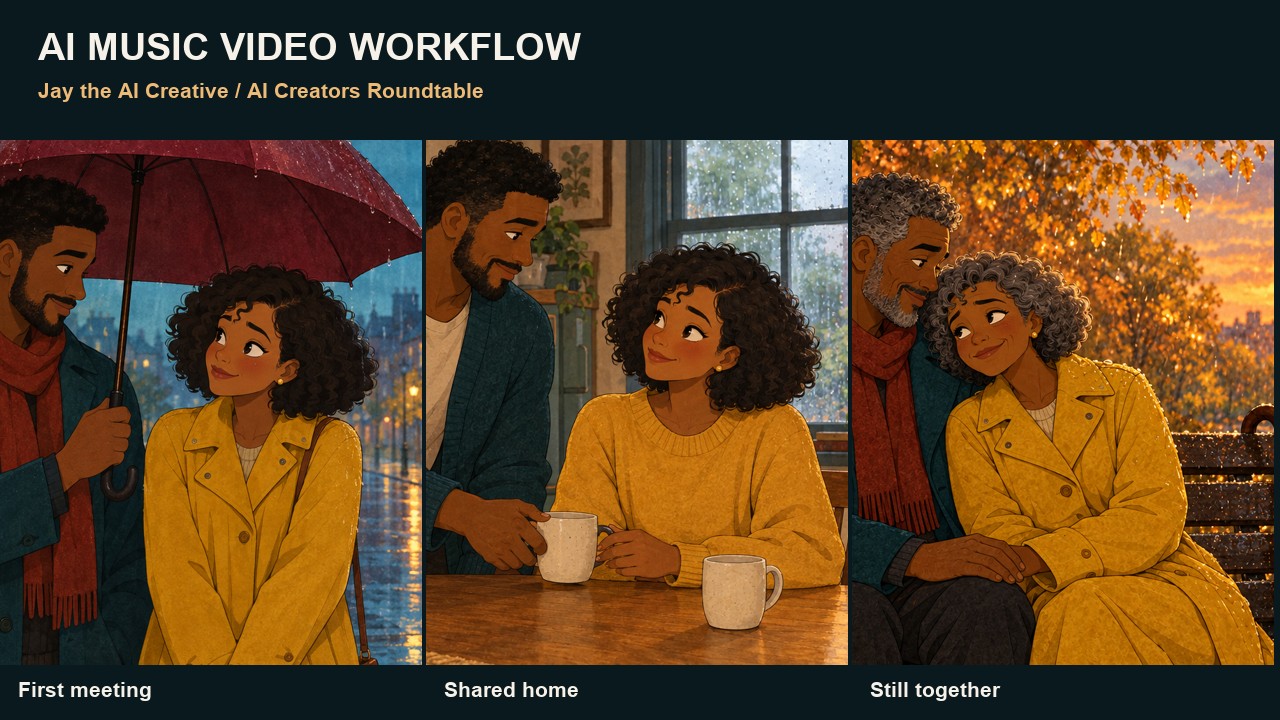
Start with a reference showing both people. Preserve their faces, skin tones, clothing colors, and illustration style across the next stills. For the older scene, specify gray hair and natural age lines while retaining their recognizable features.
Character and style direction
Hand-painted 2D illustration with warm watercolor textures and clean outlines.
A fictional Black couple: he has deep brown skin, short curly hair, a short
beard, a teal jacket and rust scarf. She has medium brown skin, a rounded
curly bob, a mustard coat and small gold earrings.
Keep both people recognizable throughout. Burgundy umbrella as a recurring
object. Gentle expressions, natural hands, cinematic composition. No text.
Three scene actions
- First meeting: he gently tilts the umbrella to cover her; she smiles.
- Shared home: he slides a cream coffee mug toward her in a cozy kitchen.
- Later life: she rests her head on his shoulder on a sunset park bench.
Each generated source was ten seconds. The final edit uses ten seconds, ten seconds, and the first five seconds of the last shot. The last generation pushed the camera too low later in the shot, so we cut before it lost the faces. That gave us a stronger 25-second film.
The original score was generated with ElevenLabs: intimate felt piano, a simple warm motif, light cello, no drums, no vocals. Its ending fades to fit the shorter edit. A small gesture and a recurring object can carry the story without complicated dialogue.
Step 4: Assemble the edit and teach with the visuals
For a narrative, put the soundtrack on the timeline first. For a performance, keep the generated sound and picture together unless you have deliberately verified another pairing.
Use crop changes to create another composition without generating another shot. Keep useful context on screen long enough to read it. For this tutorial, the talking-head crop holds are at least five seconds, while the voice remains continuous within each chapter.
The companion presentation uses HeyGen Avatar III, real browser screenshots, and Hyperframes for titles, prompts, timeline diagrams, captions, and layout changes. The screens distinguish actual interfaces from prepared examples and diagrams reconstructed from our edit records.
Make the widescreen cut first, then inspect the vertical version separately. A centered subject helps, but you still need to check where the face moves. Enlarging 480p to 1080p changes dimensions; it does not restore detail that the generation never made.
Step 5: Run three quality checks
| Round | Check | What it catches |
|---|---|---|
| File | Decode the complete export; verify sound, dimensions, frame rate, start and ending | Broken files, missing audio, black gaps, accidental freezes |
| Timing | Compare source and export at the opening, joins, and ending | Added audio or picture offsets and accumulating drift |
| Picture | Inspect identity, hands, crop, readable text, continuity, and both sides of cuts | Visual problems that metadata cannot identify |
In the corrected studio exports, 42 audio windows measured zero added offset. In the cinematic exports, 46 windows matched the uninterrupted original song at zero offset. Those are export-timing checks, not an independent score of every generated lip movement.
We also inspected source and export frames. Sampled checks passed within that scope. Watch the complete result before you publish; sampling does not certify every generated frame.
If something looks wrong
| Problem | First useful check |
|---|---|
| Mouths lead the words | Compare the exact preview with the export; remove unverified picture advances and soundtrack substitutions |
| Face changes between locations | Revisit the approved identity reference and regenerate the still before the animation |
| Hands or props behave strangely | Simplify to one action; inspect the source and trim unusable portions |
| Vertical crop cuts off the face | Review the full movement in the vertical framing |
| 1080p still looks soft | Check source resolution; ordinary enlargement cannot recover missing detail |
Your first test
Make one clear reference and one short clip. Save the prompt and the source. Check it against the export. When that works, build the rest.
For another workflow, see put yourself in a music video with AI, the AI video producer walkthrough, and six creator tasks for your AI assistant.
AI handles the busywork. You keep the taste.