I Tried the 'Put Yourself in a Music Video' AI Trend. Here's How It's Really Done.
Free guide: the exact prompt, the reference-photo checklist, tested FFmpeg commands for the vertical and upscale, a cost planner and a before-you-post checklist are all in the Music Video Trend Walkthrough Prompt Guide. No sign-up.
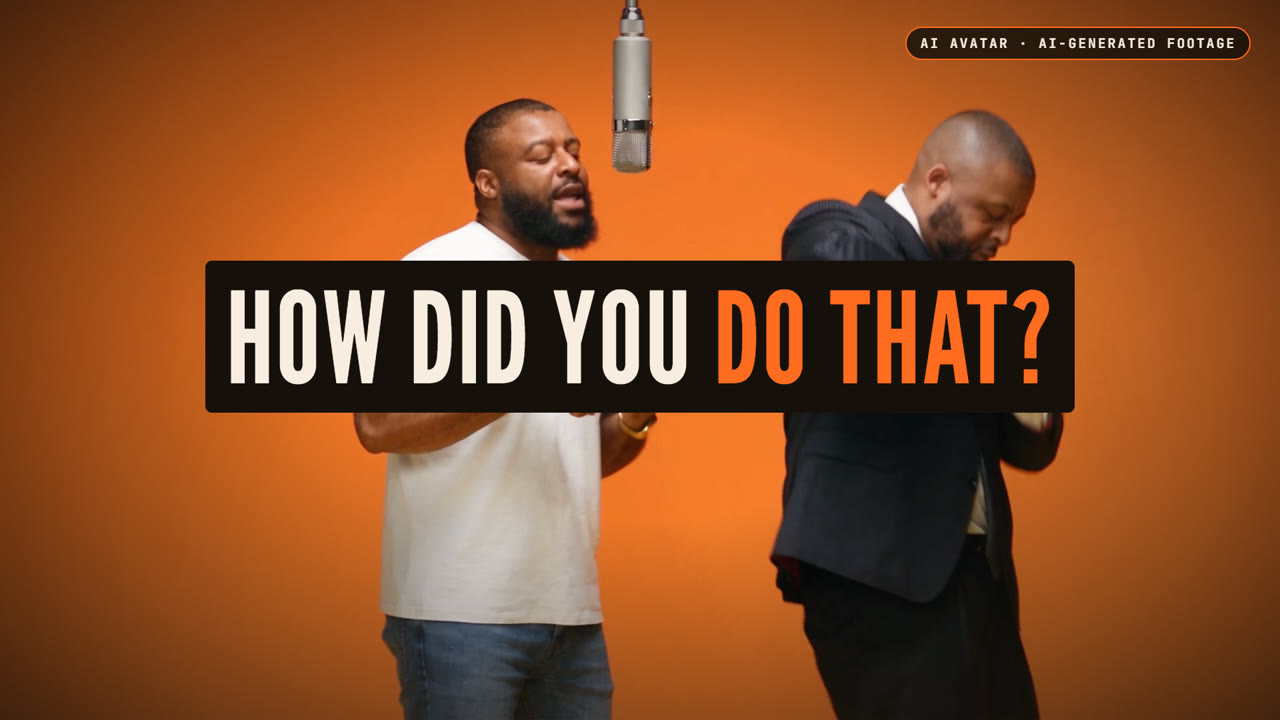
You've seen this trend. Somebody drops themselves into a music video, both people on screen are them, and the comments are all asking the same thing: how did you do that?
So I made one. That's me, twice: the white tee and the pinstripe suit. I didn't film a single frame of it.
Here's what the trend posts don't show you. When I tried it the way it looks like everybody's doing it, the platform blocked me. Then, when I got it working, it dressed me in clothes I never gave it. This post is the whole thing: the right mode, the right photo, the exact prompt, and what it actually cost.
Before we start
- This is a tutorial from one real build, done in September 2026. Higgsfield's menus, prices and limits change, so check the site before you spend credits.
- Credit numbers are from my own runs, not a price list.
- Not legal advice. The copyright section below is my standard, not a lawyer's opinion.
- In the companion video, the presenter is my digital avatar, built with HeyGen. The build, the failures and the numbers are my own.
What you walk away with
One 30-second clip with you swapped in for both people. A landscape version for YouTube, and a vertical version for Reels and TikTok.
You need three things: a Higgsfield account with credits, a source clip, and a photo of yourself. I'm going to be very specific about that photo in a minute. I used Claude Code to drive Higgsfield and handle the file work, but you can click through every step on the Higgsfield website.
Who this is for: creators who want a high-energy visual for a hook, an intro or a promo. Who should skip it: if you need a full music video, this isn't it. Thirty seconds is the limit.
Step 1: Trim to 30 seconds
The tool is called Genjutsu, and it takes clips between four and thirty seconds. My clip was 31.7. Not close enough.
So I cut the last 1.7 seconds before uploading. Make that cut yourself so you decide what goes, not the platform. (A free one-line FFmpeg command for this is in the guide.)
Step 2: Your photo is your whole look
Here's the thing nobody tells you. The photo doesn't just give it your face. It gives it your whole look: face, hair, build, clothes, accessories. Whatever's in the picture, that's what it dresses you in.
I learned that the expensive way. My first run used a headshot of me in a white tee. From the chest down it had nothing to go on, so it guessed: a white button-up, black pants, bracelets. None of that was mine.
So use a full-body photo, head to toe, in the exact outfit you want on screen. I generated one of me in a white tee, jeans and white sneakers for about a credit and a half. Then I realized I'd left off my gold watch, and that meant one more full render.
Decide the complete outfit before you generate. Every change after that costs you a full render.
Step 3: Motion transfer, not Objects swap
This is the part that tripped me up. Genjutsu has two modes: Objects swap and Motion transfer. Swapping characters sounds like Objects swap, so that's what I used. It sat in the queue and came back with a status I'd never seen: ip_detected.
Basically, Higgsfield recognized copyrighted material and refused to touch it. Credits came back, so no money lost.
I wouldn't say the tool was broken. What I would say is that it was doing exactly what it's supposed to do, and I was using the wrong door.
The right door is in the Motion Library, under Community. That exact clip was sitting there as a template with a Recreate button, and it was tagged Motion transfer.
Step 4: The prompt
Switch to Motion transfer, add your clip, add your photos, and use this prompt:
Replace the man on the left side of the source video with the person in image one, and replace the man on the right with the person in image two. The original sound and movements should remain the same. Just swapping characters.
My settings: 720p, 210 credits, about ten minutes. Every hand gesture, every head turn, every camera zoom carried over.
The guide has variants for a single person and for your own footage. I only ran the two-person version, so treat the variants as starting points.
Step 5: The vertical version
Genjutsu keeps the shape of your source. Landscape in, landscape out. So the vertical is on you.
Stretch the canvas and you're two tiny people on a phone screen. Crop tight and you cut yourself in half during the close-ups. My first square crop literally sliced the suit version of me down the middle.
What worked: crop to 4:3 around both of us, then use Higgsfield's Reframe to extend the set up and down to 9:16. That cost 140 credits.
The catch: Reframe has to invent whatever wasn't in the shot. In a few close-ups it gave me cream pants instead of jeans. So I also made a free version in FFmpeg: the clip in the middle with a blurred copy filling the top and bottom. Less immersive, but it doesn't invent anything.
| Option | Cost | Trade-off |
|---|---|---|
| 4:3 crop + Higgsfield Reframe | 140 credits | Immersive, but invents what it never saw |
| FFmpeg blur fill | Free | Less immersive, invents nothing |
Pick the trade-off you can live with. Both commands are in the guide, tested on these exact clips.
Step 6: Upscaling (and what upscaling isn't)
The renders came back at 720p. I upscaled to 1080p with FFmpeg, which is free.
To be clear, that makes it bigger and a little sharper. It doesn't add detail that wasn't rendered. For true 1080p, render at 1080p or use an AI upscaler. For a Reel on a phone, the free version is fine.
What it actually costs
If you do it right the first time: 210 for the render, 140 for the vertical, a credit or two for the photo. About 350 credits.
What I actually spent: about 784. Six hundred thirty of that was three renders, because I fixed the outfit twice. The blocked attempt was refunded.
The expensive part isn't the tool. It's changing your mind after you hit generate.
The part the trend skips
This clip is somebody else's performance: the choreography, the camera work, the song. A community template isn't a license. If you post this and monetize it, expect a copyright claim. Ownership here is complicated, so don't assume generating it gives you unlimited rights.
My standard:
- Label it as AI.
- Don't pass it off as you actually being in that studio.
- If it's going somewhere that earns money, swap in audio you have the rights to. (In my own edit of this build, every Genjutsu clip plays muted.)
And the better version of this trend? Film ten seconds of your own moves and run Motion transfer on footage that's yours. Your performance, with a studio you didn't have to rent.
Recap
- Trim to 30 seconds.
- Full-body photo in the final outfit.
- Motion transfer, not Objects swap.
- Decide everything before you hit generate.
Your homework
Take one full-body photo in the exact outfit you want. Record ten seconds of yourself with some energy. Run it through Motion transfer. That's your first clip, and you'll own every piece of it.
Download the Music Video Trend Walkthrough Prompt Guide: free, no sign-up.